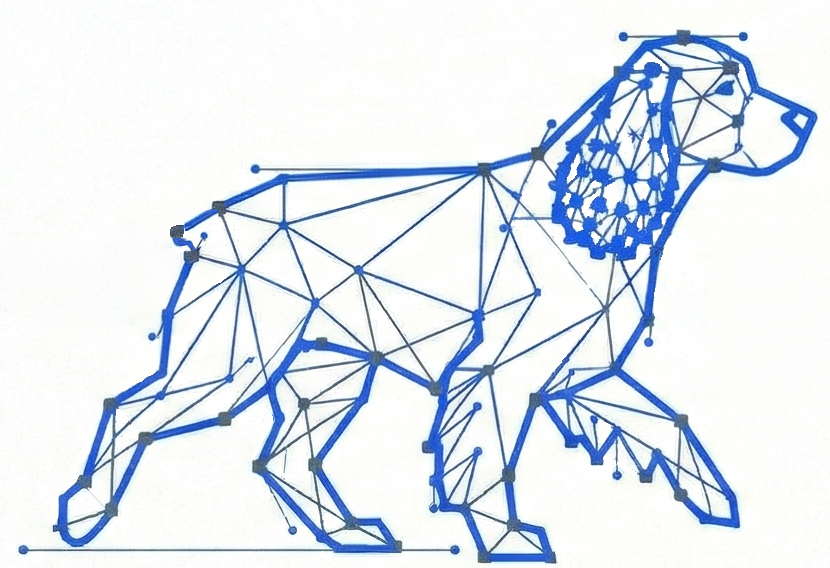
Reference Image & Art Styles
How to use a reference photo to guide composition, and what each art style produces.
1. What is a Reference Image?
A reference image gives the AI a compositional anchor. When you upload one, the AI uses the shapes, layout, and subject of your photo to guide the generated result — it reads the scene and builds a new image around that structure.
The output is not a copy of the original. Think of it more like an artist studying your photo and then rendering a stylised interpretation of it. The more clearly defined the subject in your photo, the more reliably the AI can use it as a guide.
2. How to Upload
The Reference Image slot is in the Tools panel on the Generate page. Click the upload area or drag a file into it.
| Requirement | Detail |
|---|---|
| Accepted formats | PNG, JPEG, WEBP |
| Maximum file size | 8 MB |
| Best results | Clear subject, good contrast, minimal busy backgrounds |
3. How Art Style Works
The Art Style dropdown controls the visual treatment applied to the reference composition. It transforms how the subject is rendered — not what the subject is.
The Default option
Leaving the style on Default lets the AI choose the most natural rendering based on the reference and the selected Blueprint category. It is often a good starting point before exploring the named styles.
Applying a style
Once a reference image is uploaded, open the Art Style dropdown and pick any style from the list. The style is layered on top of the Blueprint category prompt — your category context is preserved while the visual treatment changes.
4. Art Style Reference
There are six named styles available. Each is described below with what it produces and what kind of reference images pair well with it.
1. Anime / Manga
Bold ink drawing with cel-shaded colors
Reimagines the reference subject in classic Japanese animation style. Expect bold black ink outlines, flat cel-shaded colors, and expressive linework. Faces and forms are stylised rather than realistic.
Best for
Character art, portraits, and scenes that benefit from a graphic, expressive treatment.
Vibe
Kinetic, graphic, expressive
2. Classic Art
Van Gogh / Cyberpunk painterly fusion
Applies thick impasto brushwork inspired by Van Gogh onto the composition of the reference, but pushes it into a cyberpunk neon-glow atmosphere. The result is dramatically textured and richly coloured.
Best for
Landscapes, cityscapes, and any subject where dramatic lighting and texture serve the composition.
Vibe
Painterly, dramatic, atmospheric
3. Water / Sketch
Loose hand-drawn watercolor feel
Renders the reference as a loose watercolor painting over a pencil under-drawing. Soft washes bleed at the edges, the pencil lines show through, and the overall feel is hand-crafted and warm.
Best for
Florals, animals, food, and any subject that benefits from a cosy, storybook quality.
Vibe
Soft, warm, handmade
4. Sketch-to-Render
Photorealistic 3D rendering
Takes the composition from the reference and renders it with physically accurate materials, cinematic studio lighting, and depth-of-field. The output looks like a high-end product or architectural visualisation.
Best for
Objects, products, logos, and any subject where a polished, professional render is the goal.
Vibe
Crisp, photorealistic, premium
5. Fine Line Art
Minimalist single-line illustration
Traces the key forms of the reference into a continuous single-line drawing on a white background. No fills, no shading — just ultra-clean fine black ink. The result is minimalist and printable.
Best for
Portraits, animals, and objects where a clean tattoo-adjacent or editorial line-art look is desired.
Vibe
Minimal, precise, elegant
6. Blueprint / Architectural
Technical drafting-style drawing
Converts the reference into an architectural blueprint — white linework on a deep blue background, with grid lines, dimension callouts, and annotation labels. It reads like an engineering diagram.
Best for
Buildings, vehicles, objects, and any subject suited to a technical, logo-adjacent illustration style.
Vibe
Technical, structured, graphic
5. Pairing Tips
The type of photo you upload significantly shapes the result. Here are tried combinations to get you started quickly.
| Your Photo | Art Style | Expected Result |
|---|---|---|
| Pet photo | Fine Line Art | Clean line sticker — great for printing or cutting on vinyl. |
| Product or object | Sketch-to-Render | Photorealistic product visual — polished and premium. |
| Character sketch | Anime / Manga | Fully styled anime version of your character. |
| Landscape or scene | Classic Art | Painterly Van Gogh treatment with neon atmosphere. |
| Floral or plant | Water / Sketch | Storybook watercolour result — soft and warm. |
| Any subject | Blueprint / Architectural | Technical diagram version — excellent for logo marks. |
6. Quick Comparison
A side-by-side summary of all six styles at a glance.
| Style | Visual Quality | Best Pairing | Vibe |
|---|---|---|---|
| Anime / Manga | Cel-shaded, graphic | Characters, Stickers | Expressive, kinetic |
| Classic Art | Thick painterly impasto | Landscapes, Scenes | Dramatic, atmospheric |
| Water / Sketch | Soft washes + pencil lines | Florals, Animals, Food | Cosy, handmade |
| Sketch-to-Render | Photorealistic 3D | Products, Logos | Crisp, premium |
| Fine Line Art | Single continuous line, no fill | Portraits, Animals | Minimal, elegant |
| Blueprint / Architectural | White on blue, annotations | Objects, Buildings | Technical, structured |
Try it in Prompt Blueprints
Open the Generate page, upload a reference photo, pick an Art Style, and hit Generate to see it applied to any Blueprint category.